
Steps on how to collect the data for Resideo International
-
Log into Amazon Vendor Central using the Last Pass credentials from Active - Resideo - Amazon Vendor Central from Resideo - Europe.
-
There will be a MFA authentication code sent.
-
Check the email, enter the code, and click “Submit Code”
-
This will bring you to an account selection screen, select the account “DE – bk-electronic GmbH”. And click select account
-
This will bring up another login screen for Amazon Vendor Central Europe where you will have to change the login email to the proper one from Last Pass.
-
You will then have to enter another MFA code that will be emailed
-
Enter the code in the box and again click “Submit Code”
-
-
You will be brought to the URL vendorcentral.amazon.de/home/vc from where you will go to the top left and click on the Retail Analytics Button
-
Navigate the top ribbon below, click on Sales.
-
From here you will navigate down to the box labeled “Time Frame,” and select Weekly
- Confirm that the Week displayed is Last Week
-
Make sure “Manufacturing” is selected under the “Distributor view”.
-
Make sure the "Currency" dropdown says “EUR – Euro”
-
Click “APPLY”.
-
In the middle right you will see a box that says “bk-electronic GmbH”. Select the box.
-
Click “Select all”.
-
Click “Apply”.
-
Navigate to the right of apply and select the CSV download.
-
Do this even if you get "No data to display. Please adjust your filters"
-
- After that has been done and says “your report has been requested” go back to the “Distributor View,” select the drop down, click “Sourcing”, click “Apply” and select the CSV under downloads again
- Go to the top toolbar, and click “Inventory"
-
From here you will navigate down to the box labeled “Time Frame,” and select Weekly
- Confirm that the Week displayed is Last Week
-
Make sure “Manufacturing” is selected under the “Distributor view”.
-
Make sure the "Currency" dropdown says “EUR – Euro”
-
Click “APPLY”.
-
In the middle right you will see a box that says “bk-electronic GmbH”. Select the box.
-
Click “Select all”.
-
Click “Apply”.
-
Navigate to the right of apply and select the CSV download.
-
Do this even if you get "No data to display. Please adjust your filters"
-
-
After that has been done and says “your report has been requested” go back to the “Distributor View,” select the drop down, click “Sourcing”, click “Apply” and select the CSV under downloads again
-
From here you’ll navigate to the top right of the screen and click “Manage Downloads".
-
It’ll bring up the 4 files, click "Download" when all 4 files are ready.
-
Rename the files using the information below.
-
Log out of the portal.
- Send the files to data@krunchbox.com using 2 emails
Manufacturing
- Email Subject: ResideoInternational - Amazon - Manufacturing - YYYYMMDD
- File Name: ResideoInternational Inventory_ASIN_Manufacturing_Retail_Germany_France_Netherlands_Poland_UnitedKingdom_Italy_Spain_Weekly_DD-MM-YYYY_DD-MM-YYYY
- File Name: ResideoInternational Sales_ASIN_Manufacturing_Retail_Germany_France_Netherlands_Poland_UnitedKingdom_Italy_Spain_Weekly_DD-MM-YYYY_DD-MM-YYYY
Sourcing
- Email Subject: ResideoInternational - Amazon - Sourcing - YYYYMMDD
- File Name: ResideoInternational Inventory_ASIN_Sourcing_Retail_Germany_France_Netherlands_Poland_UnitedKingdom_Italy_Spain_Weekly_DD-MM-YYYY_DD-MM-YYYY
- File Name: ResideoInternational Sales_ASIN_Sourcing_Retail_Germany_France_Netherlands_Poland_UnitedKingdom_Italy_Spain_Weekly_DD-MM-YYYY_DD-MM-YYYY
Visual Guide on how to collect the data for Resideo International
-
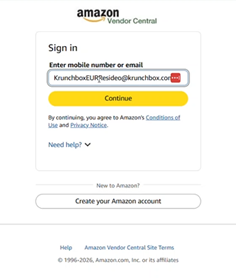
Log into Amazon Vendor Central using the Last Pass credentials from Active - Resideo - Amazon Vendor Central from Resideo - Europe.
-
There will be a MFA authentication code sent.
-
Check the email, enter the code, and click “Submit Code”
-
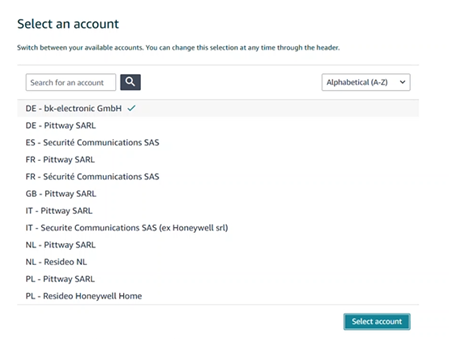
This will bring you to an account selection screen, select the account “DE – bk-electronic GmbH”. And click select account
-
This will bring up another login screen for Amazon Vendor Central Europe where you will have to change the login email to the proper one from Last Pass.
-
You will then have to enter another MFA code that will be emailed
-
Enter the code in the box and again click “Submit Code”
-
-
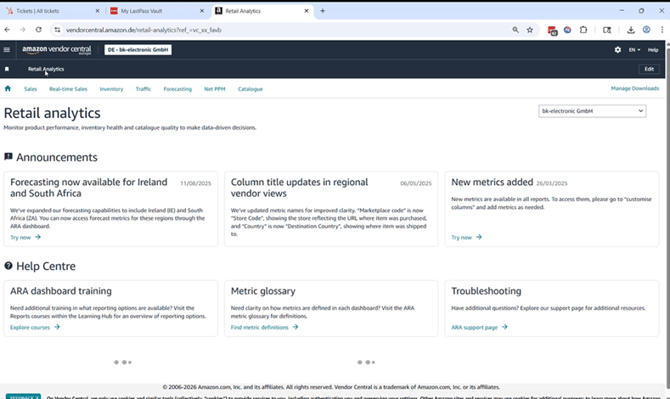
You will be brought to the URL vendorcentral.amazon.de/home/vc from where you will go to the top left and click on the Retail Analytics Button
-
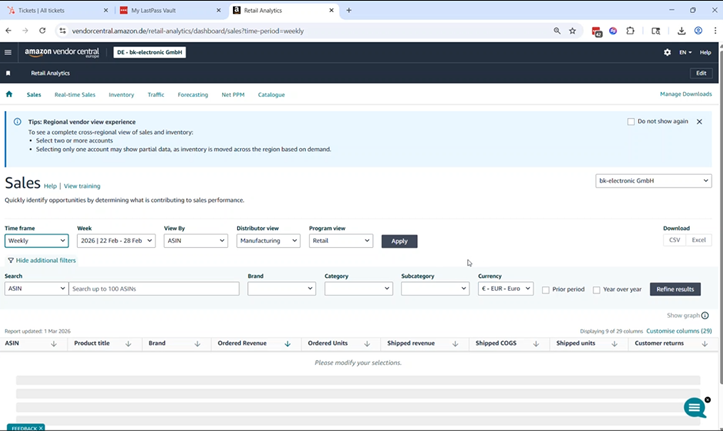
Navigate the top ribbon below, click on Sales.
-
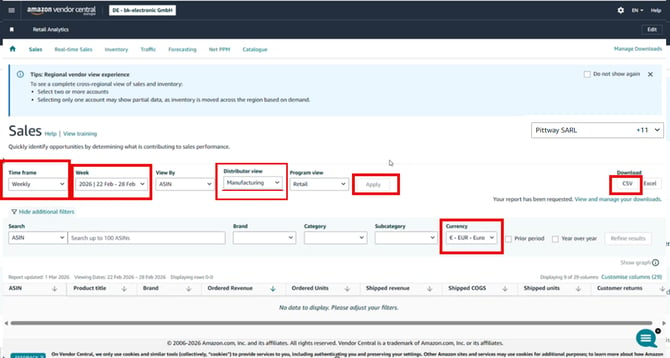
From here you will navigate down to the box labeled “Time Frame,” and select Weekly
- Confirm that the Week displayed is Last Week
-
Make sure “Manufacturing” is selected under the “Distributor view”.
-
Make sure the "Currency" dropdown says “EUR – Euro”
-
Click “APPLY”.
-
In the middle right you will see a box that says “bk-electronic GmbH”. Select the box.
-
Click “Select all”.
-
Click “Apply”.
-
Navigate to the right of apply and select the CSV download.
-
Do this even if you get "No data to display. Please adjust your filters"
-
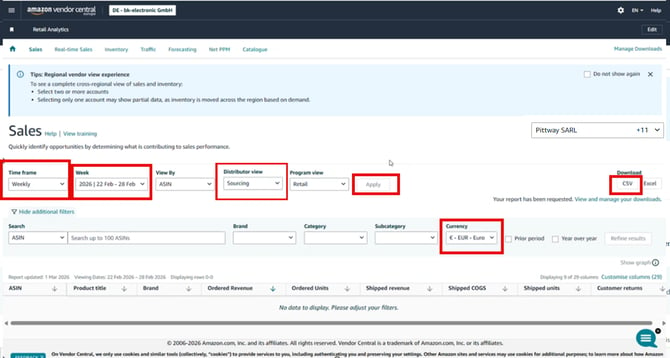
- After that has been done and says “your report has been requested” go back to the “Distributor View,” select the drop down, click “Sourcing”, click “Apply” and select the CSV under downloads again
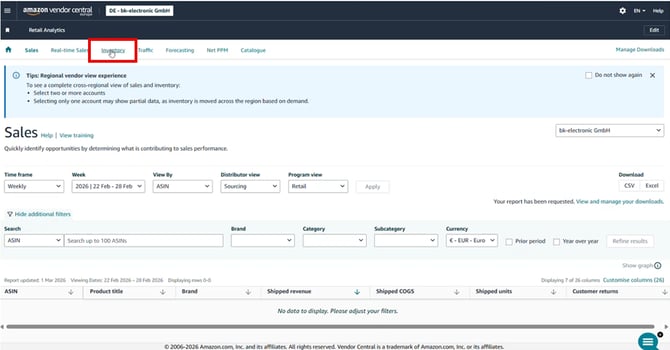
- Go to the top toolbar, and click “Inventory"
-
From here you will navigate down to the box labeled “Time Frame,” and select Weekly
- Confirm that the Week displayed is Last Week
-
Make sure “Manufacturing” is selected under the “Distributor view”.
-
Make sure the "Currency" dropdown says “EUR – Euro”
-
Click “APPLY”.
-
In the middle right you will see a box that says “bk-electronic GmbH”. Select the box.
-
Click “Select all”.
-
Click “Apply”.
-
Navigate to the right of apply and select the CSV download.
- Do this even if you get "No data to display. Please adjust your filters"
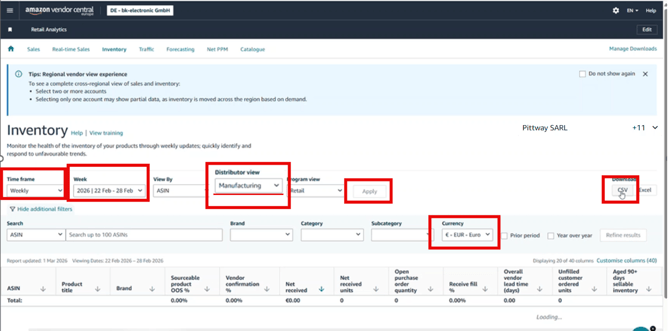
- Do this even if you get "No data to display. Please adjust your filters"
- After that has been done and says “your report has been requested” go back to the “Distributor View,” select the drop down, click “Sourcing”, click “Apply” and select the CSV under downloads again
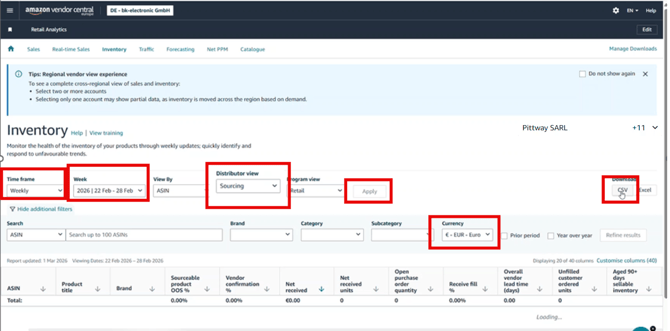
- From here you’ll navigate to the top right of the screen and click “Manage Downloads".
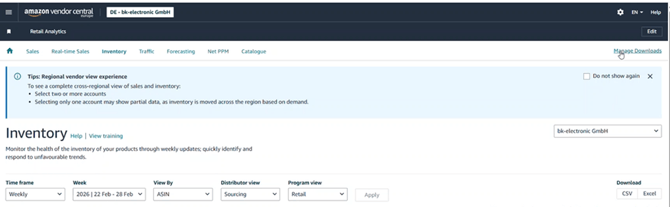
- It’ll bring up the 4 files, click "Download" when all 4 files are ready.
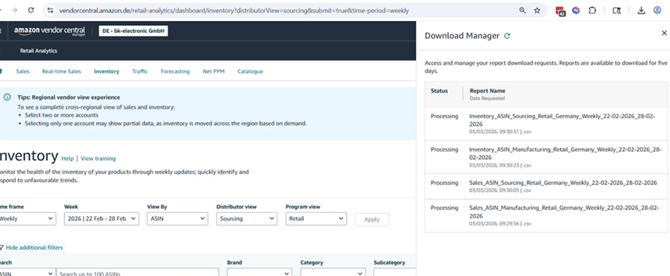
- Rename the files using the information below.
- Log out of the portal.
- Send the files to data@krunchbox.com using 2 emails
Manufacturing
- Email Subject: ResideoInternational - Amazon - Manufacturing - YYYYMMDD
- File Name: ResideoInternational Inventory_ASIN_Manufacturing_Retail_Germany_France_Netherlands_Poland_UnitedKingdom_Italy_Spain_Weekly_DD-MM-YYYY_DD-MM-YYYY
- File Name: ResideoInternational Sales_ASIN_Manufacturing_Retail_Germany_France_Netherlands_Poland_UnitedKingdom_Italy_Spain_Weekly_DD-MM-YYYY_DD-MM-YYYY
Sourcing
- Email Subject: ResideoInternational - Amazon - Sourcing - YYYYMMDD
- File Name: ResideoInternational Inventory_ASIN_Sourcing_Retail_Germany_France_Netherlands_Poland_UnitedKingdom_Italy_Spain_Weekly_DD-MM-YYYY_DD-MM-YYYY
- File Name: ResideoInternational Sales_ASIN_Sourcing_Retail_Germany_France_Netherlands_Poland_UnitedKingdom_Italy_Spain_Weekly_DD-MM-YYYY_DD-MM-YYYY