---
title: Selecting Attributes in krunchbox Reports
description: Selecting Attributes in krunchbox Reports
---
[Skip to content](https://academy.krunchbox.com/knowledge/selecting-attributes-in-krunchbox-reports#main-content)

- [Help Center](https://academy.krunchbox.com)
- [www.krunchbox.com](https://www.krunchbox.com)
Open main navigation
Close main navigation
- [Help Center](https://academy.krunchbox.com)
- [www.krunchbox.com](https://www.krunchbox.com)
- [Contact Support](https://krunchbox.com/support/)
[Contact Support](https://krunchbox.com/support/)
How can we help you?
- There are no suggestions because the search field is empty.
1. [Help Center](https://academy.krunchbox.com/knowledge?hsLang=en)
2. [How-to Articles](https://academy.krunchbox.com/knowledge/how-to-articles?hsLang=en)
3. [Reports](https://academy.krunchbox.com/knowledge/how-to-articles?hsLang=en#reports)
# Selecting Attributes in krunchbox Reports
## This article explains how to add product and store attributes in your krunchbox reports to gain deeper insights into your data. Using Report 101 as an example, you’ll learn how to expand your report beyond the default category summary and how to group data by different features.
#### **Overview**
**Category as the Default View:** When you open Report 101, the results are summarized by **Category**. This represents the top level of product information in your product master.
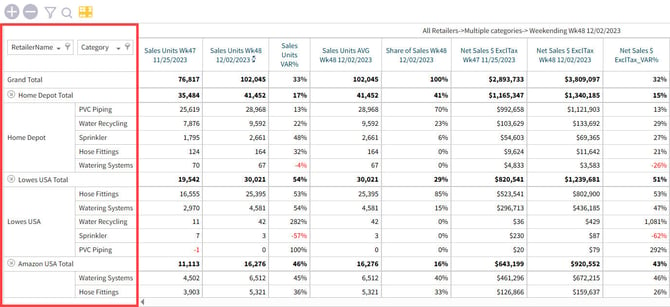
**Expanding the Report with Additional Attributes:** The report allows you to add more product information using the column selection for attributes. By expanding the **Select Attributes** drop-down box, you can view all available attributes in your product master.

#### **Adding Product Attributes **
Product Attributes are how you describe your products.
Standard product attribute fields such as:
- Subcategory
- Description
- Brand
- Size
- Color
Custom fields based on your own product attributes that are unique to your company
**Example – Adding Subcategory and Description:**
To review your data based on additional product features:
Locate and expand the attribute drop-down.
Select **Subcategory** and **Description**.
Click the **Kruch** button to update the report.
Once processed, you will see the new columns **Subcategory** and **Description** added to your report.

#### **Working with Store-Level Reports**
If you want to analyze your data at the store level, follow these steps:
**Convert to a Store-Based Report:**
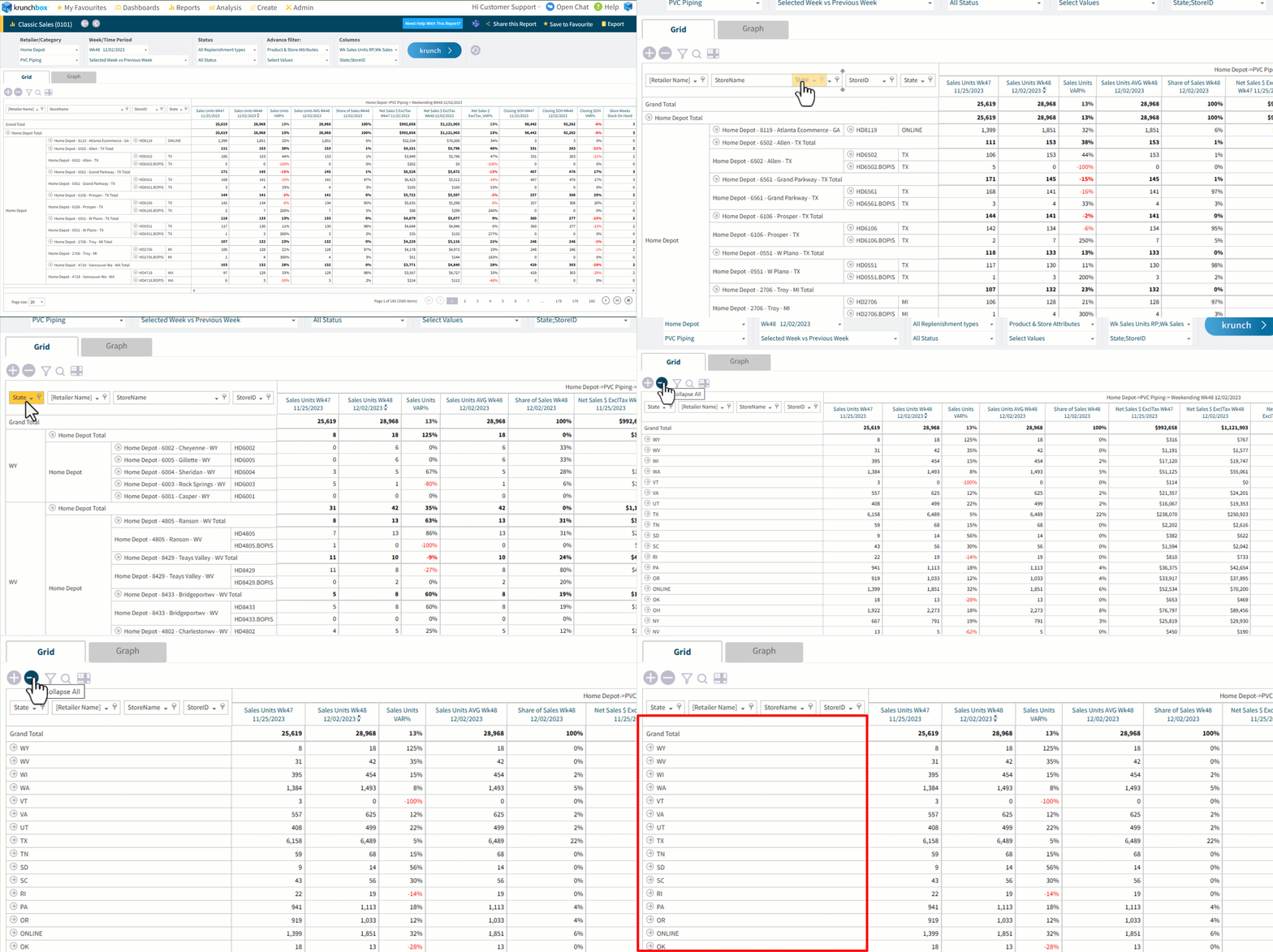
- Right-click on the a product field in the report (e,g,. Grand Total, Category)
- Select **Show me Store** from the context menu.
- The report will now switch to a view based on store features.

#### **Adding Store Attributes**
Store Attributes are how you describe your stores.
Once in store mode, additional fields become available. These may include:
- Store ID
- State
- Store type
- Custom fields (e.g., Store type, Sales Rep)
Store attributes can now be added to your report.

#### **Grouping Data and Analyzing Trends **
By adding these attributes, you can group and analyze the information in multiple ways:
**Grouping by Attributes:**
You can drag fields such as **Sales Rep** to the front of the report. Once grouped, you can collapse or expand details to see a summary by sales rep.
#### **Data Insights:**
Grouping allows you to identify trends, such as:
- An upward trend in sales for a specific sales rep
- Areas that may require further attention or performance improvement
#### **Conclusion**
By adding attributes—whether product or store-specific—into your krunchbox reports, you can break down and analyze your data in various ways. This capability provides valuable insights, helps identify trends, and supports strategic decision-making. Explore the different attributes available, group your data as needed, and start uncovering the trends that impact your business.
To learn more about Selecting Attributes in Krunchbox Report, watch the following short video.
If you have any questions or need assistance with krunchbox, reach out to us at [support@krunchbox.com](https://academy.krunchbox.com/knowledge/support@krunchbox.com?hsLang=en)
- [Training Guides](https://academy.krunchbox.com/knowledge/training-guides?hsLang=en)
- [How-to Articles](https://academy.krunchbox.com/knowledge/how-to-articles?hsLang=en#main-content)
- [Dashboards](https://academy.krunchbox.com/knowledge/how-to-articles?hsLang=en#dashboards)
- [Reports](https://academy.krunchbox.com/knowledge/how-to-articles?hsLang=en#reports)
- [Account Management](https://academy.krunchbox.com/knowledge/how-to-articles?hsLang=en#account-management)
- [krunchbox Go](https://academy.krunchbox.com/knowledge/how-to-articles?hsLang=en#krunchbox-go)
- [Retail Data Setup Guides](https://academy.krunchbox.com/knowledge/retail-data-setup-guides?hsLang=en)
- [Customer training](https://academy.krunchbox.com/knowledge/customer-training?hsLang=en)
- [Beta Resources](https://academy.krunchbox.com/knowledge/beta-resources?hsLang=en#main-content)
- [Beta Predict](https://academy.krunchbox.com/knowledge/beta-resources?hsLang=en#beta-predict)
[](http://www.krunchbox.com)
Krunchbox Help Center
[mailto:support@krunchbox.com](mailto:support@krunchbox.com)
Copyright © 2025, Krunchbox Inc.